Production
The Production module is the heart of Qrema -- where green beans are transformed into roasted coffee. Manage work orders, roast profiles, machines, roasters, and sync data from Artisan roasting software.
Work Orders
A Work Order represents a single roasting batch. It tracks what green beans go in, what roasted coffee comes out, and all the parameters in between.
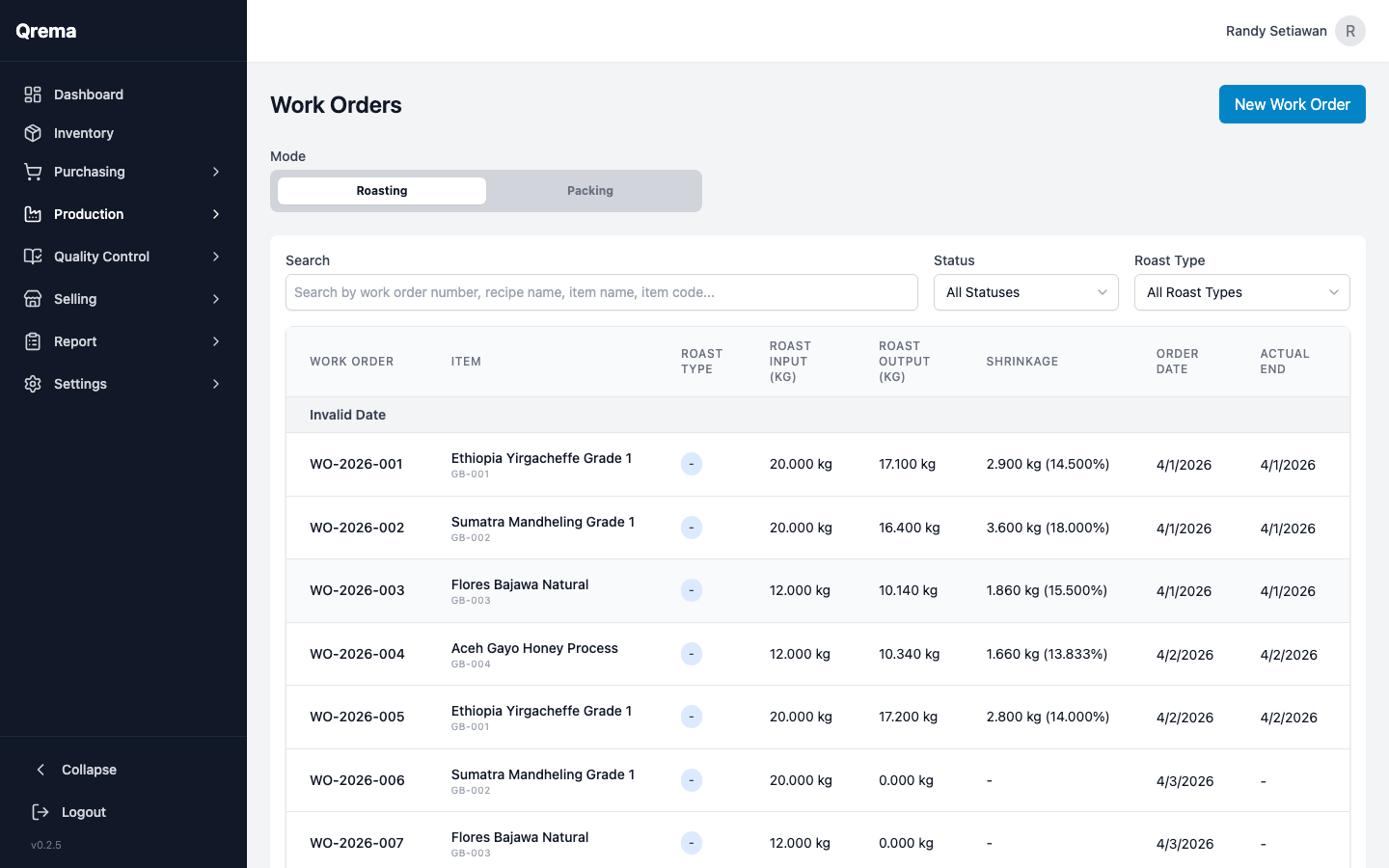
Work Order Fields
| Field | Description |
|---|---|
| Work Order Number | Unique identifier |
| Green Bean / Lot | The input material being roasted |
| Roast Profile | The master profile (recipe) to follow |
| Machine | Which roasting machine is used |
| Roaster | The operator (roast master) performing the roast |
| Input Weight | Weight of green beans going into the roaster (kg) |
| Output Weight | Weight of roasted coffee produced (kg) |
| Roast Loss % | Percentage of weight lost during roasting (auto-calculated) |
| Status | Draft, In Progress, Completed, Cancelled |
Creating a Work Order
Click "+ Create Work Order" to schedule a new roasting batch.
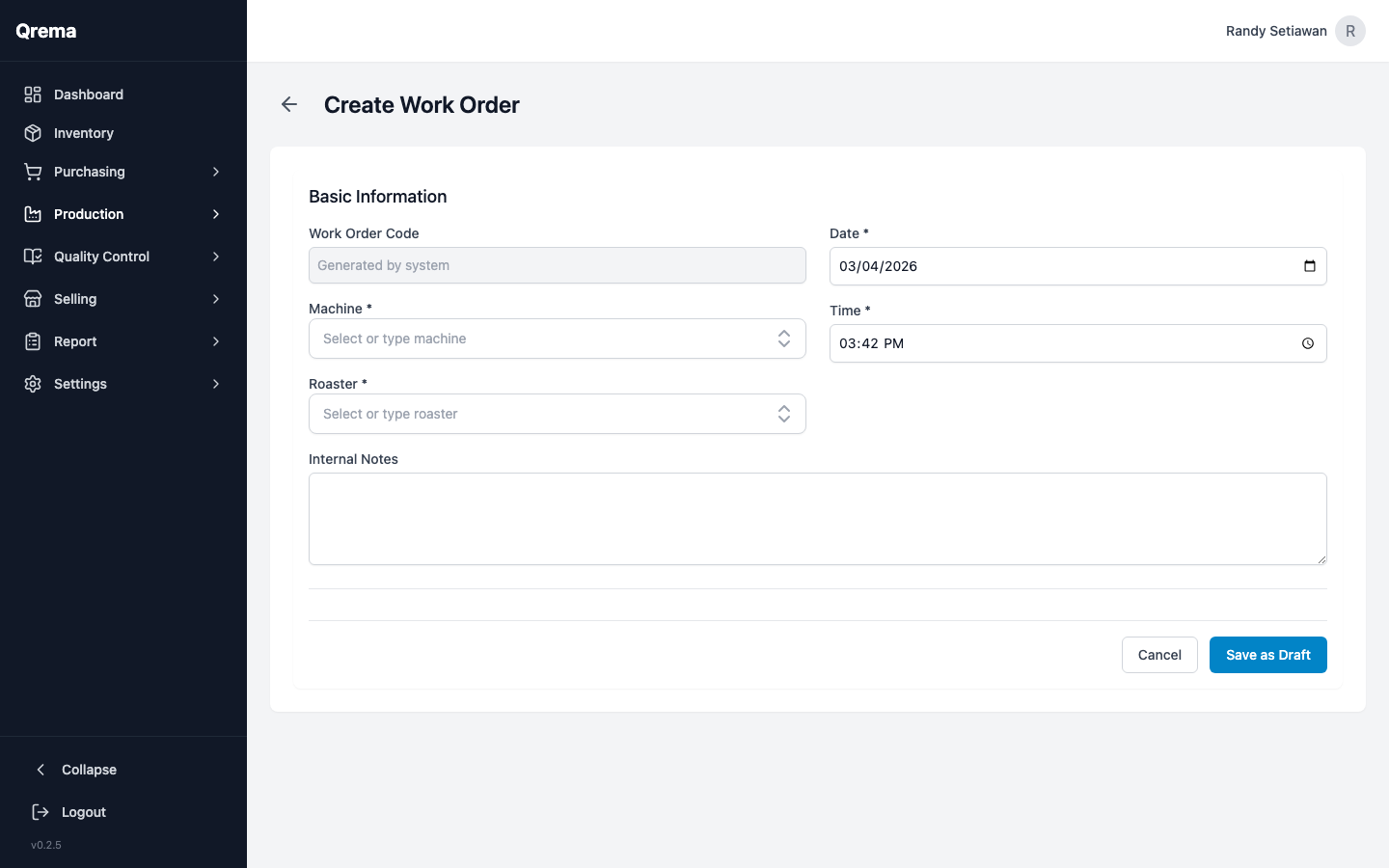
- Select the green bean (and optionally the specific lot)
- Choose a roast profile (master profile)
- Assign the roasting machine and roast master
- Enter the input weight
- Save as Draft or start immediately
Work Order Lifecycle
When completed, the work order:
- Deducts the input weight from green bean inventory
- Adds the output weight to roasted coffee inventory
- Records the roast loss percentage
- Generates a roast profile visualization with time/temperature curves
Important: Always record the actual output weight after roasting. The roast loss percentage is a key quality metric and affects COGS calculations.
Roast Profile Visualization
Completed work orders include a roast profile chart showing the time/temperature curve for the batch. This visualization displays BT (Bean Temperature), ET (Environment Temperature), and key event markers.
PDF Download
Completed work orders can be downloaded as a PDF report containing all batch details, the roast profile chart, input/output weights, and roast loss data. Click the "Download PDF" button on any completed work order.
Tip: Use PDF reports for quality documentation, customer transparency, or archival purposes.
Floating Stopwatch
During roasting, a draggable floating stopwatch is available on screen. Use it to time your roast phases without leaving the work order page. The stopwatch can be repositioned anywhere on the screen by dragging.
Master Profile (Roast Recipes)
Master Profiles define your roast recipes -- the target parameters for roasting a specific coffee. Think of them as your roasting playbook.
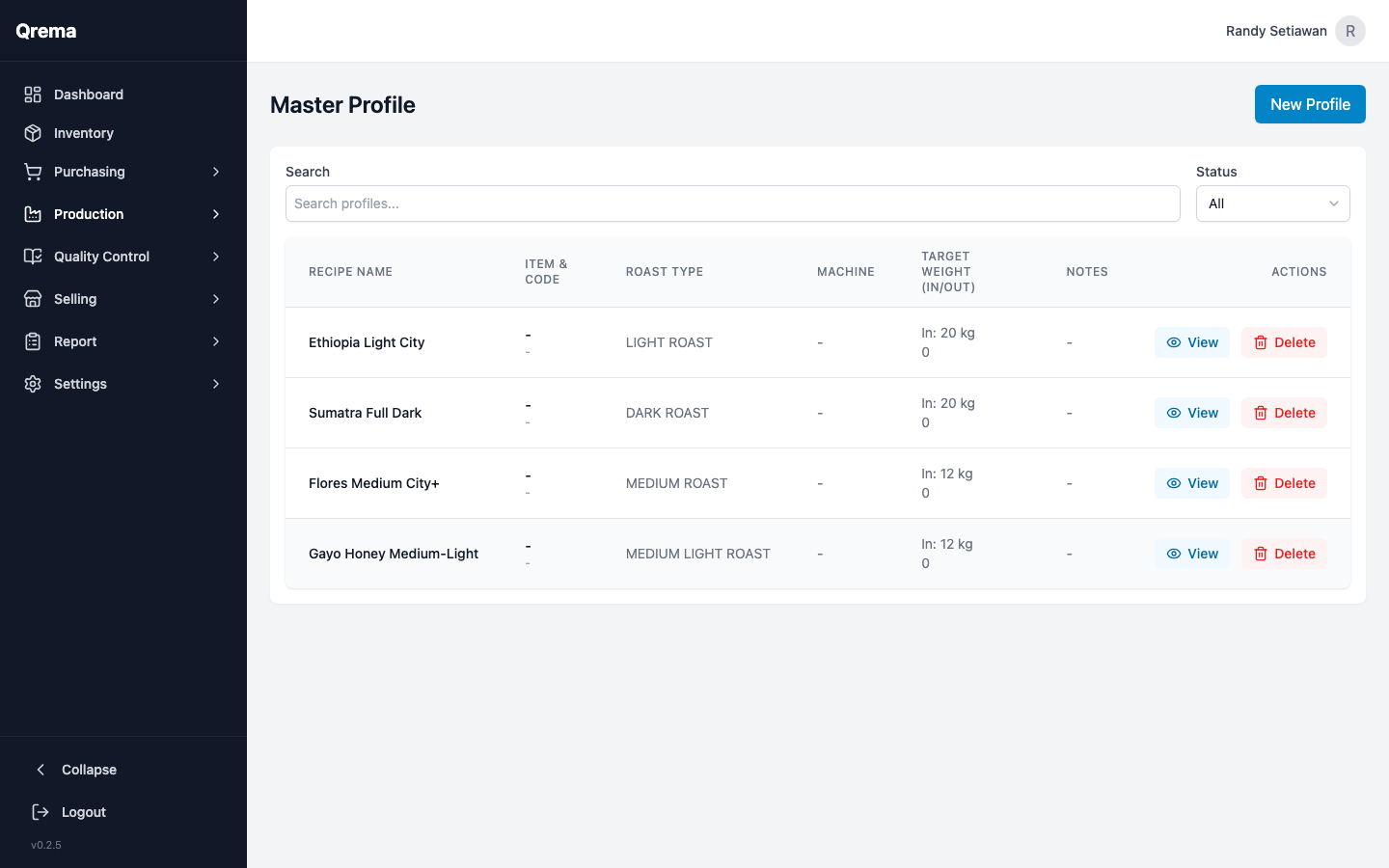
Profile Fields
- Profile Name -- Descriptive name (e.g., "Ethiopia Yirgacheffe - Light Roast")
- Roast Level -- Light, Medium-Light, Medium, Medium-Dark, Dark
- Target Temperature -- End temperature for the roast
- Development Time -- Time after first crack
- Notes -- Additional roasting notes and instructions
Tip: Create profiles for each origin and roast level combination. Consistent profiles lead to consistent quality.
Artisan Sync
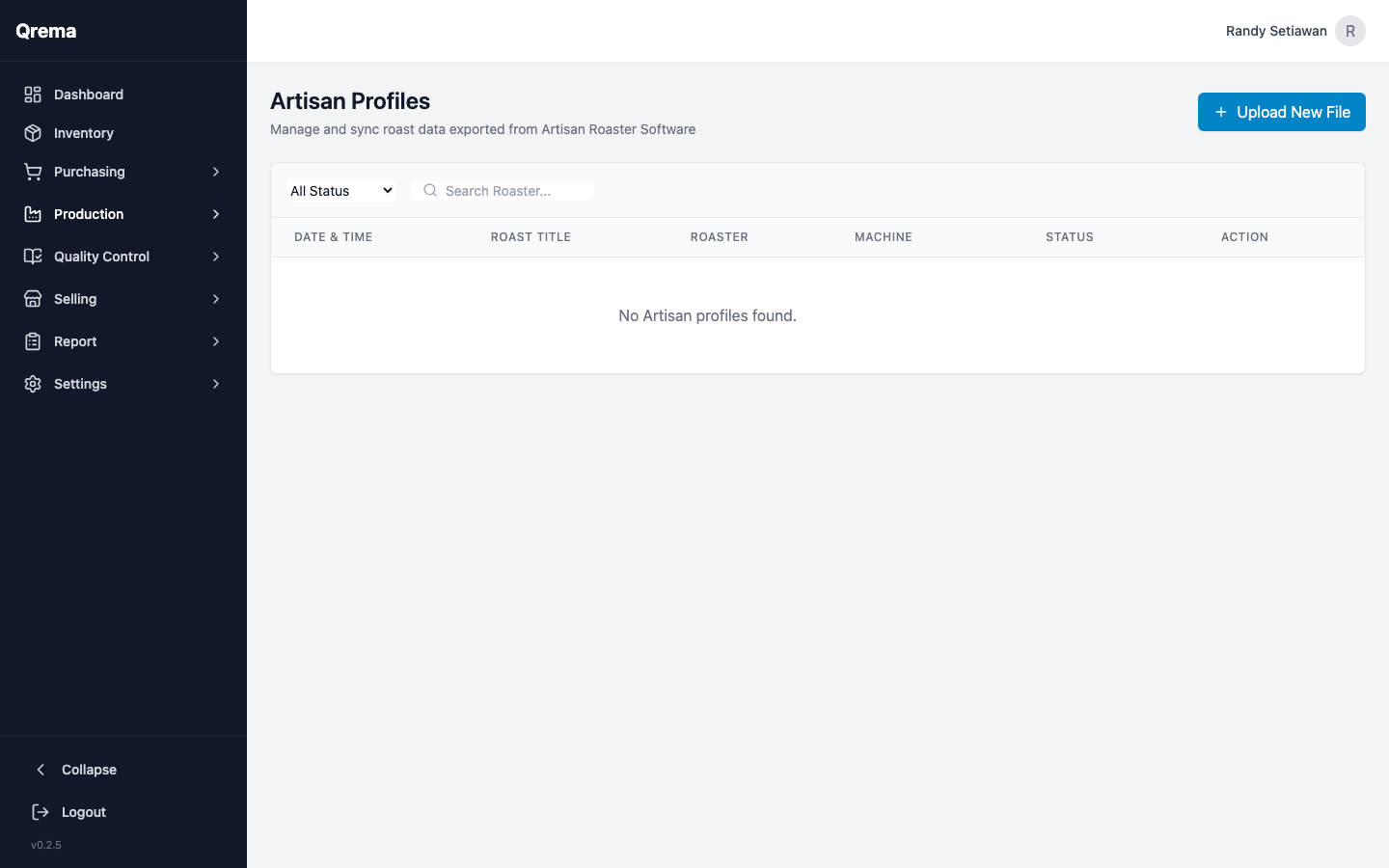
If you use Artisan (the open-source roast logging software), Qrema can import roast data directly from .alog files — bringing the full time/temperature curve, event markers, and weight data into your production records.
What Gets Imported
When you upload an .alog file, Qrema extracts:
| Field | Description |
|---|---|
| Roast Title | Batch name as set in Artisan |
| Roast Date & Time | When the roast was performed |
| Machine | Roaster machine type (from Artisan machine config) |
| Operator | Roast master name (from Artisan operator field) |
| Drum Speed | Drum RPM recorded during the roast |
| Input / Output Weight | Charge and drop weights (kg) |
| Roast Loss % | Weight loss percentage (auto-calculated) |
| BT Curve | Full Bean Temperature curve sampled every 30 seconds |
| ET Curve | Environment Temperature readings |
| RoR | Rate of Rise calculated from the BT curve |
| Key Events | Charge, Turning Point, Yellow/Dry, First Crack, Drop timestamps and temperatures |
| Fire & Airflow Events | Power and airflow changes recorded during the roast |
Uploading an .alog File Manually
- In Artisan, finish your roast and save it as an
.alogfile (File → Save As) - In Qrema, go to Production → Artisan Sync
- Click "Upload .alog File"
- Select the
.alogfile from your computer - Qrema parses the file and displays a preview of the roast data
- Confirm the import — the profile appears in your Artisan Sync list
Duplicate detection: Qrema uses the unique roastUUID embedded in each .alog file to prevent duplicate uploads. Re-uploading the same file will show a "duplicate" warning instead of creating a second record.
Linking a Profile to a Work Order
An imported Artisan profile can be attached to a Work Order to complete the production record:
- Open the imported profile from the Artisan Sync list
- Click "Link to Work Order"
- Select the matching Work Order from the dropdown
- Save — the work order now shows the full roast curve visualization
Best practice: Create the Work Order before starting the roast. After roasting, upload the .alog and link it to the existing Work Order. This keeps your batch tracking complete from start to finish.
Auto-Sync via Artisan API Key
For roasters who want to skip the manual upload step, Qrema supports automated sync using a dedicated API key that connects directly with Artisan's export scripts.
Setting Up Auto-Sync
- Go to Settings → Integrations → Artisan API Keys
- Click "Generate New Key" and give it a name (e.g., "My Roasting PC")
- Copy the key — it is only shown once
- Configure Artisan's Roast Logger or the
artisan_exporterscript to POST to:POST https://roaster.qrema.site/api/v1/artisan-sync
X-API-Key: <your-key>
Content-Type: application/json - After each roast, Artisan automatically sends the data to Qrema
Keep your API key secret. Anyone with this key can push roast data into your company account. If a key is compromised, revoke it immediately from Settings → Integrations → Artisan API Keys.
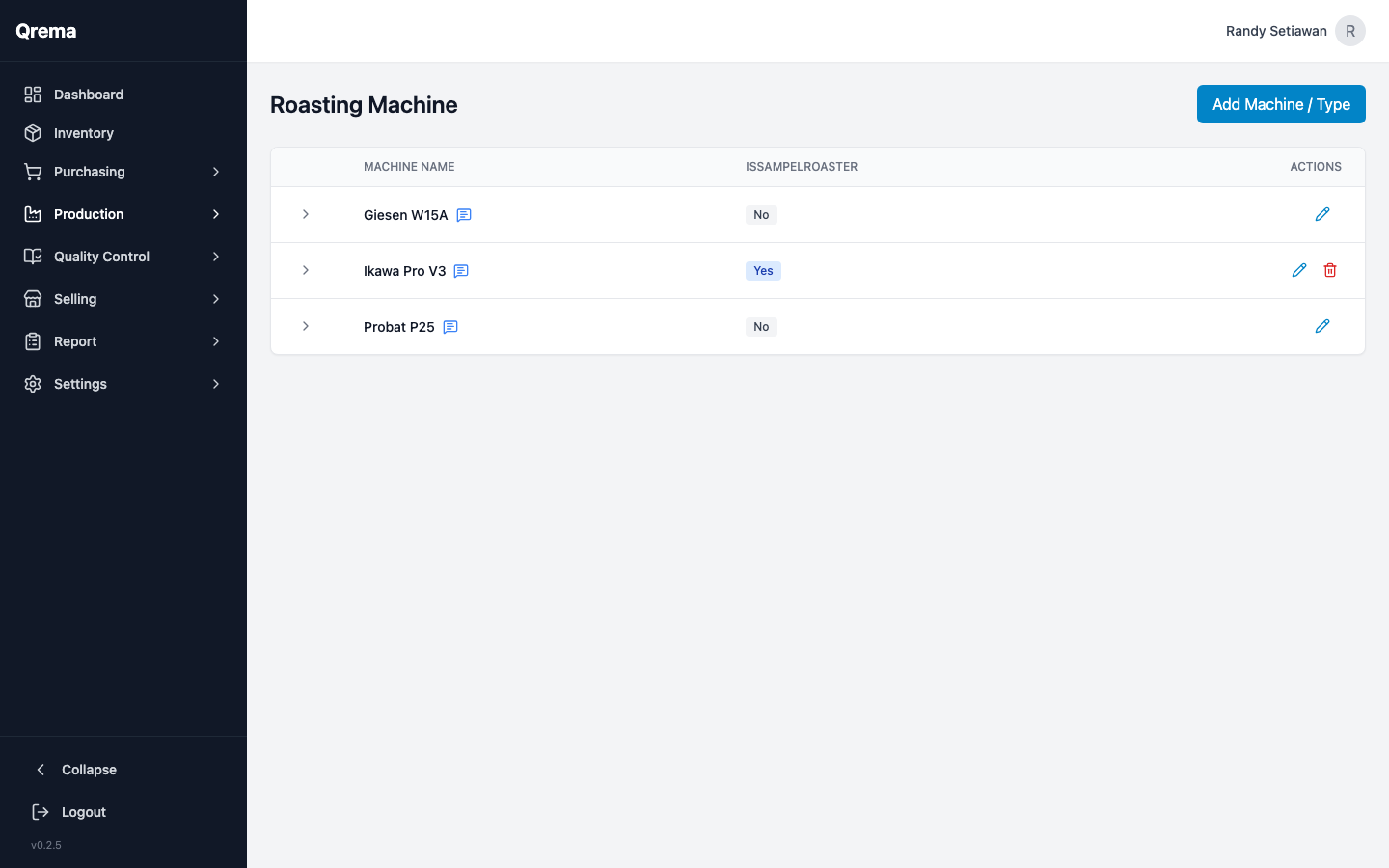
Roasting Machines
Manage your roasting equipment inventory.
Machine Fields
- Machine Name -- Identifier for the roaster (e.g., "Probat P25 #1")
- Capacity -- Maximum batch size (kg)
- Type -- Drum, fluid bed, hybrid, etc.
- Status -- Active / Inactive
- Notes -- Maintenance notes, serial number, etc.
Roast Masters
Track your roaster operators -- the people who run the machines.
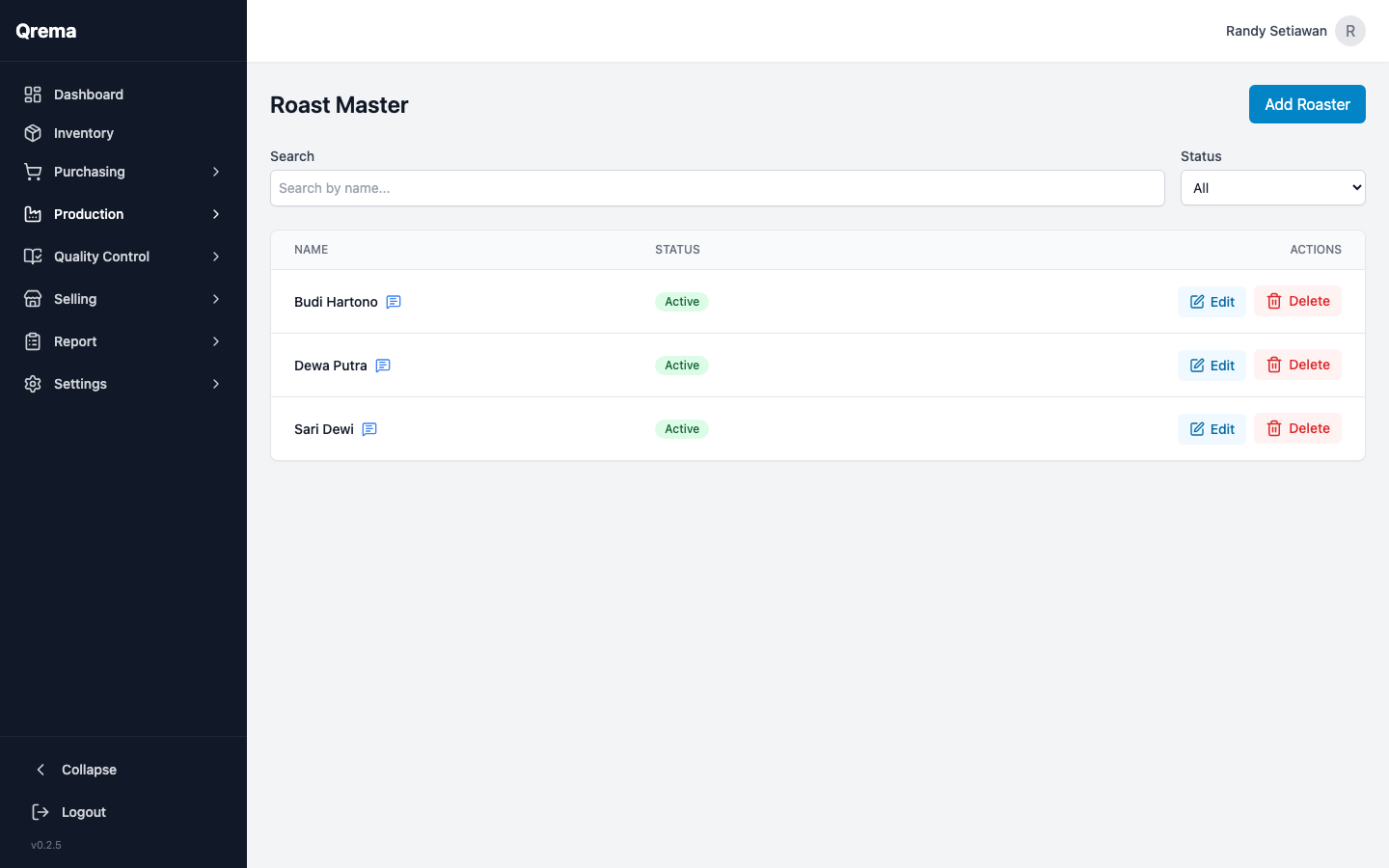
- Name -- Roast master's name
- Role -- Head Roaster, Apprentice, etc.
- Notes -- Certifications, specialties
Video Walkthrough
Production workflow -- from work order creation to roast completion