Inventory
Manage all your inventory items -- green beans, roasted coffee, packaging materials, and supplies. Track stock levels, costs, and reorder points from a single view.
Inventory List
The Inventory page shows all items in your system as a searchable, filterable table.
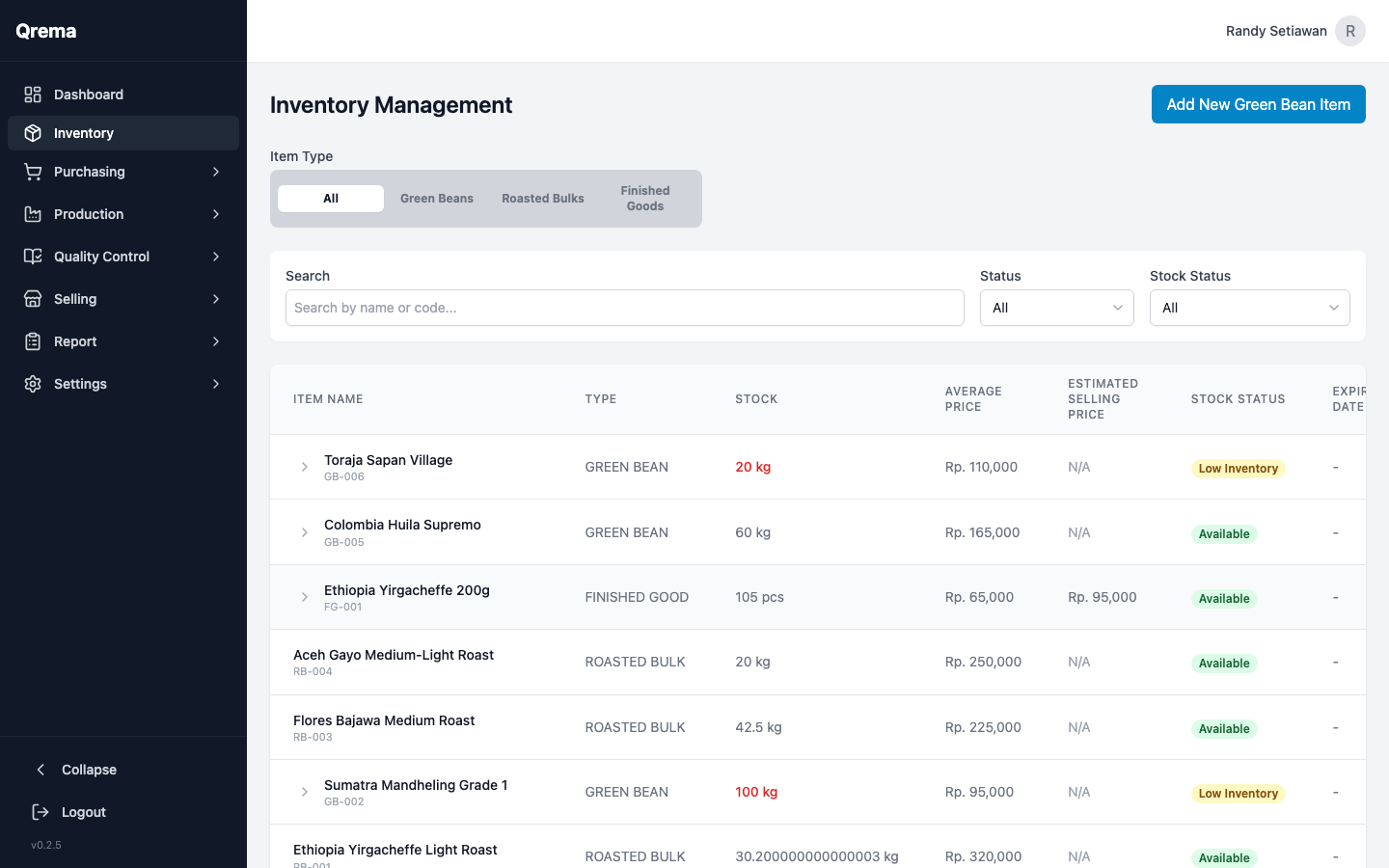
Columns
| Column | Description |
|---|---|
| Item Name | The name of the inventory item (e.g., "Ethiopia Yirgacheffe Grade 1") |
| SKU | Stock Keeping Unit -- a unique identifier for each item |
| Category | Item classification: Green Beans, Roasted Coffee, Packaging, Supplies, etc. |
| Current Stock | The quantity currently available, shown with its unit of measure (kg, pcs, bags) |
| Unit Cost | The per-unit cost of the item, used for COGS calculations |
| Reorder Point | The minimum stock level that triggers a reorder alert |
| Status | Active or inactive |
Search & Filter
Use the search bar at the top to find items by name, SKU, or category. The search is instant and case-insensitive.
Tip: Sort columns by clicking the column headers. Click once for ascending, again for descending.
Creating an Inventory Item
Click "+ Add Item" (or navigate to Inventory > Create) to add a new inventory item.
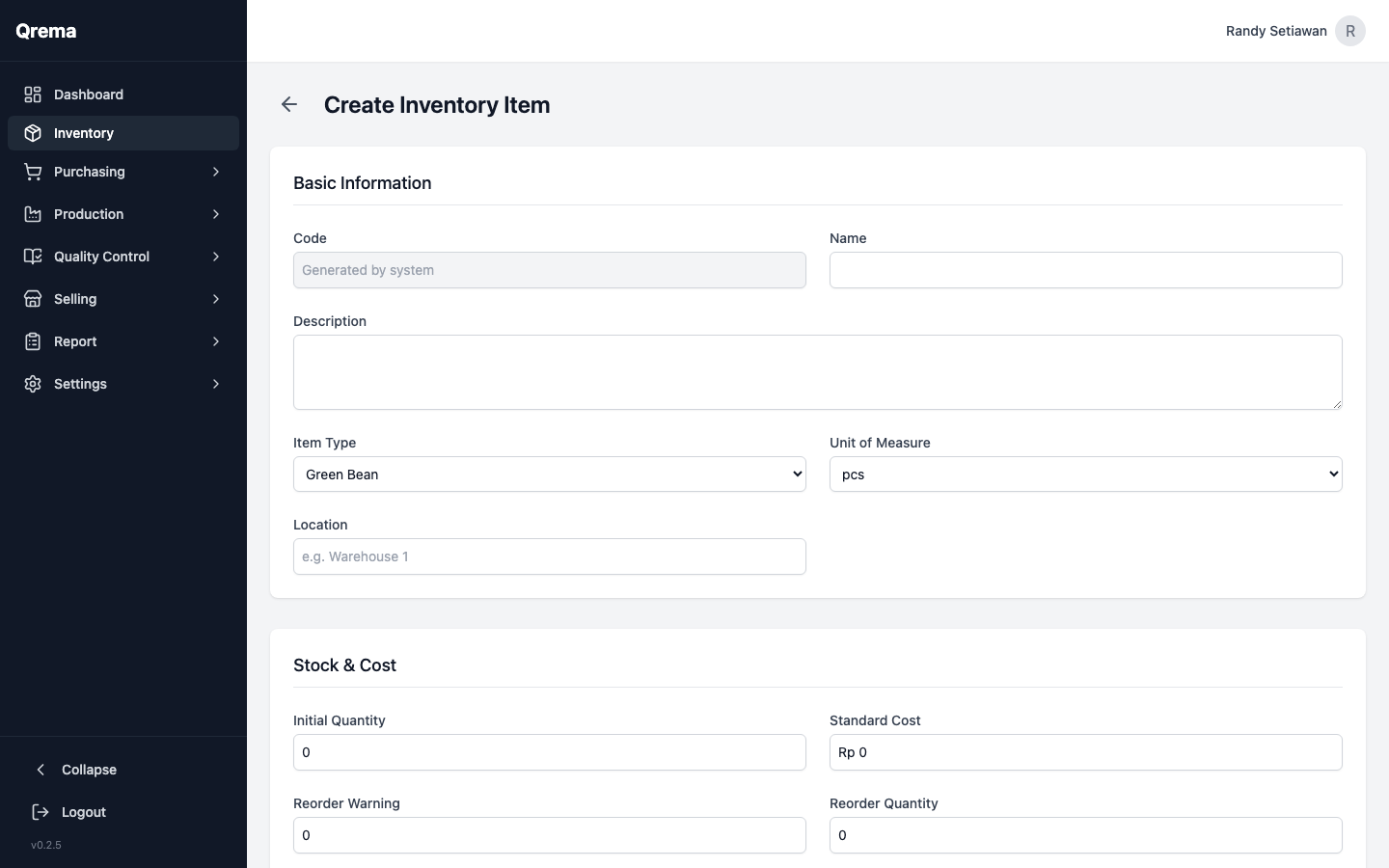
Required Fields
- Item Name -- A descriptive name for the item
- Category -- Select from predefined categories
- Unit of Measure -- kg, g, pcs, bags, etc.
Optional Fields
- SKU -- Auto-generated if left blank, or enter your own
- Description -- Additional details about the item
- Unit Cost -- Cost per unit for COGS tracking
- Reorder Point -- Minimum stock level before alert triggers
- Initial Stock -- Starting quantity when adding a new item
Categories help organize your inventory and appear in filters and reports. Common categories for a coffee roastery include: Green Beans, Roasted Coffee, Packaging, Labels, and Supplies.
Editing an Item
Click on any item row in the inventory list, or click the edit icon to modify an existing item. All fields from the creation form are editable. Changes are saved immediately when you click "Save".
Caution: Changing the unit of measure on an item that already has stock may cause inconsistencies in reports. If you need to change units, consider creating a new item and transferring stock.
Stock Management
Stock levels are updated automatically through:
- Purchase Orders -- Receiving a purchase order increases stock
- Work Orders -- Consuming green beans in production decreases stock; outputting roasted coffee increases stock
- Sales Orders -- Fulfilling a sales order decreases stock
Low Stock Alerts
Items that fall below their reorder point are highlighted on the Dashboard and in the inventory list. This helps ensure you never run out of critical supplies.
Video Walkthrough
Inventory management -- creating items, tracking stock, and managing categories