Dashboard
The Dashboard is your operational command center -- a real-time overview of inventory levels, production activity, and sales performance.
Overview
The Dashboard displays summary cards and charts covering:
- Inventory at a glance -- Total items, low-stock alerts, and inventory value
- Recent production -- Latest work orders and their status
- Sales summary -- Recent sales orders and revenue metrics
- Quick actions -- Shortcuts to create new orders, items, and work orders
Tip: The Dashboard refreshes automatically. All metrics reflect the current state of your data.
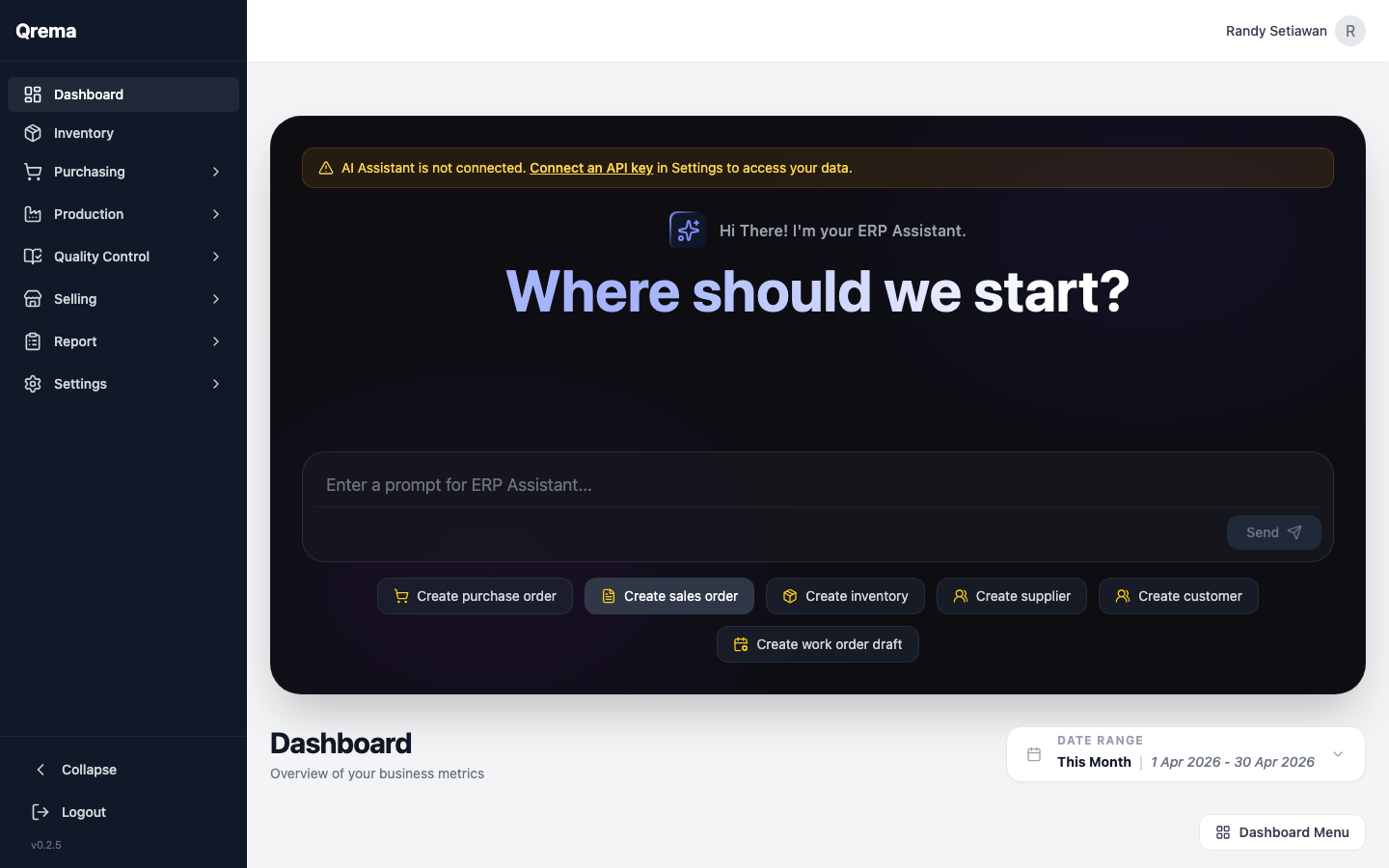
AI Assistant
The top section of the Dashboard is the AI Assistant — a conversational interface that lets you manage your roastery in plain language.
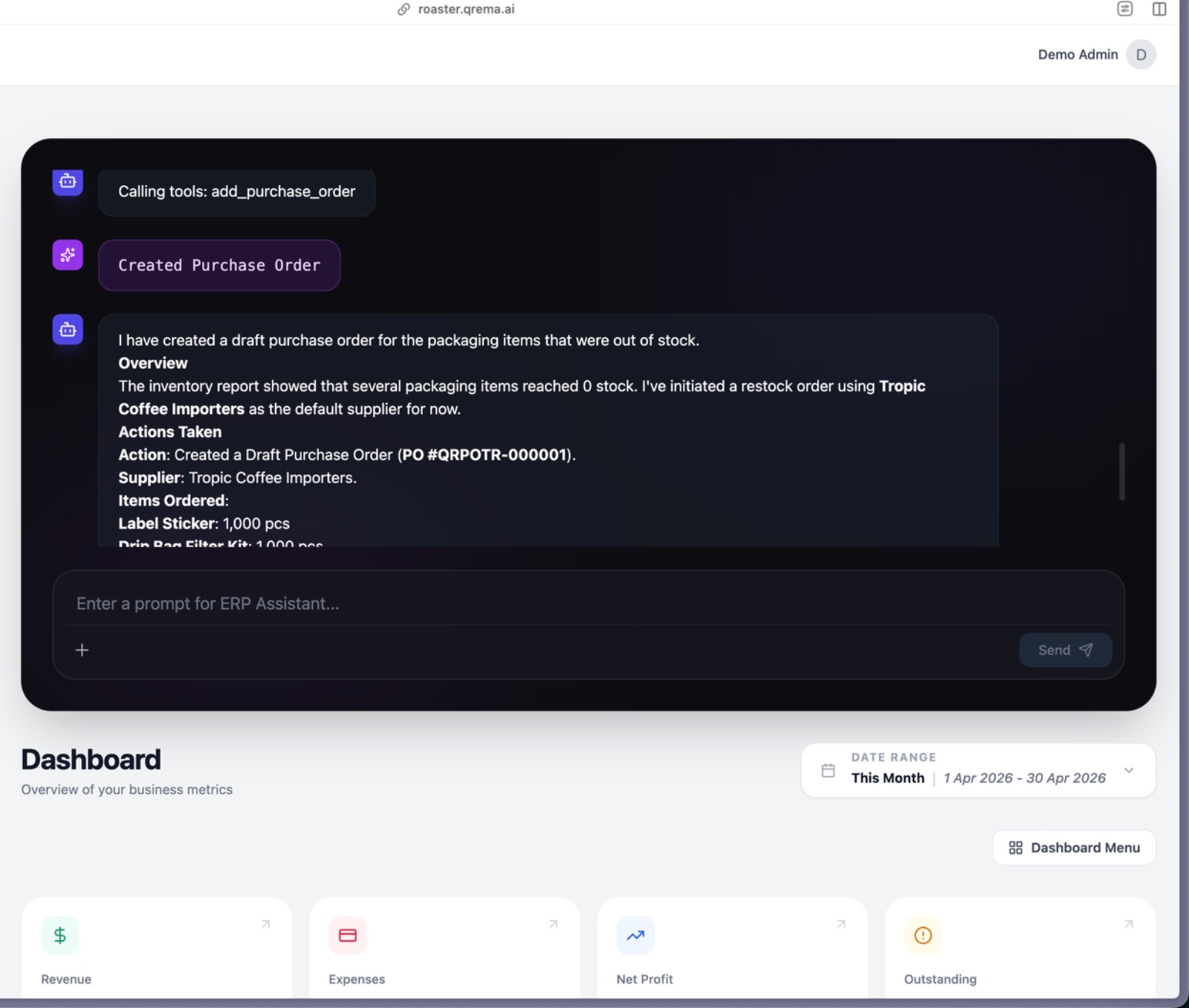
Type any request and press Enter or click Send:
- "Create a purchase order for 50kg of Gayo Arabica from CV Dampit Sejahtera"
- "List all in-progress work orders"
- "How many inventory items are low on stock?"
- "Create a sales order for Cafe Rempah — 20kg House Blend"
Connecting the AI Assistant
The AI requires a one-time API key setup. If you see an amber warning banner, the assistant is not yet connected.
- Go to Settings → MCP Integrations
- Click "Generate New Key" and copy it
- Click "Connect to AI Assistant"
- Return to the Dashboard — the banner disappears and the assistant is active
See the full AI Assistant guide for everything you can ask and do.
Metrics & Financial Overview
Below the AI Assistant, the Dashboard shows key financial and operational metrics:
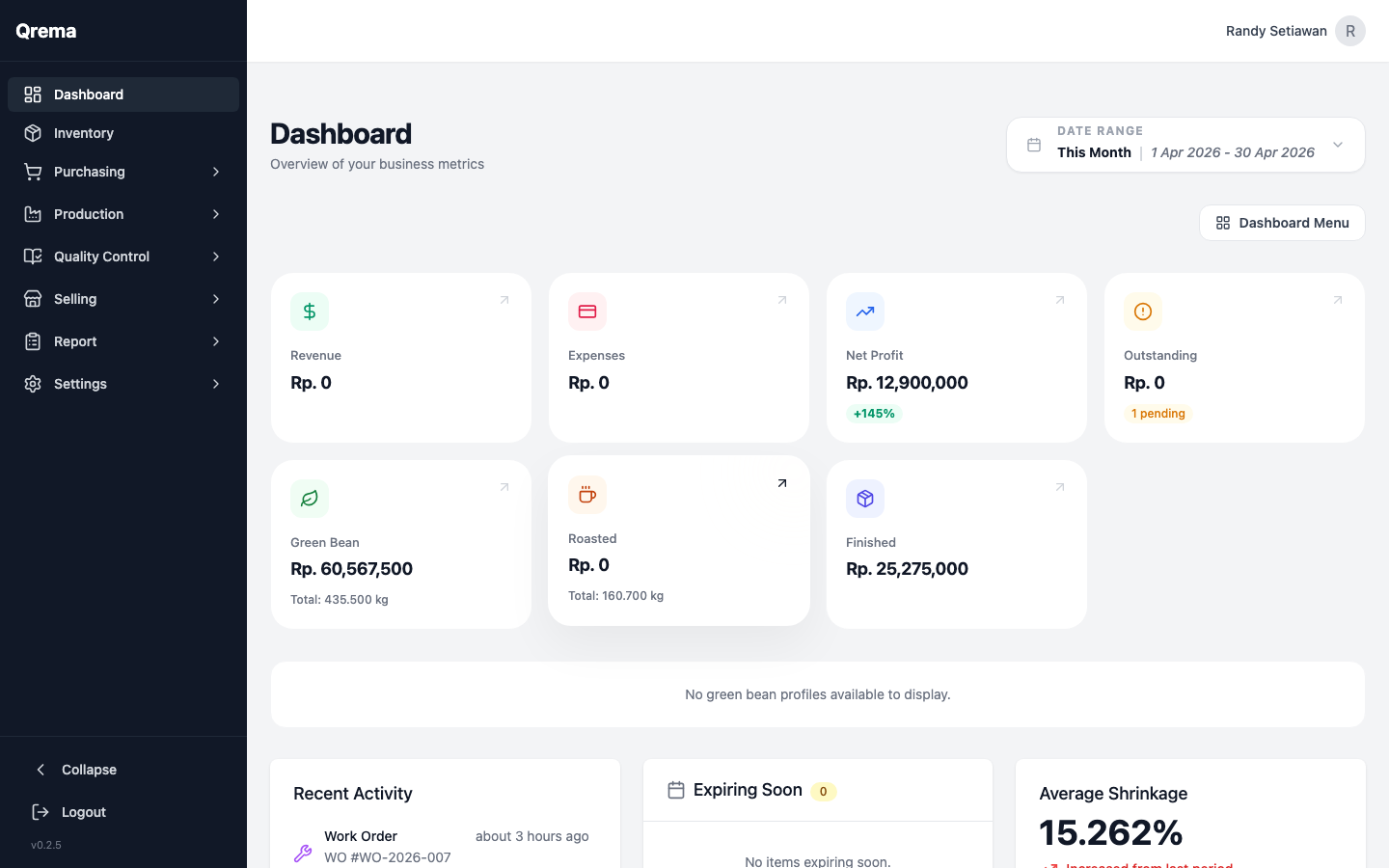
| Metric | Description |
|---|---|
| Revenue | Total revenue from sales orders |
| Expenses | Total expenses from purchase orders |
| Net Profit | Revenue minus expenses |
| Average Shrinkage | Average weight loss during roasting |
Selectable Cards: Click any dashboard card to filter the view or navigate directly to that module's detail page.
Activity & Alerts
The bottom section of the Dashboard provides operational visibility:
- Recent Activity -- Latest work orders, sales, and purchases
- Expiring Soon -- Inventory items approaching expiration dates
- Average Shrinkage -- Roasting weight loss trends across your production
Low Stock Alerts
Items below their reorder point are highlighted on the Dashboard. Click any alert to jump directly to the inventory item for reordering.
Navigation from Dashboard
Each metric card and chart section links directly to its related module. Click any card to jump to the detailed view:
- Inventory count card links to the Inventory list
- Production metrics link to Work Orders
- Sales metrics link to Sales Orders
Video Walkthrough
Dashboard overview -- navigating metrics and quick actions