AI Assistant
The AI Assistant is a conversational interface built into your Dashboard. Ask it questions, create records, and manage your roastery operations in plain language — no clicking through menus required.
How It Works
The AI Assistant connects to your Qrema data through a secure API key. Once connected, it can read and write across all your modules — inventory, purchasing, sales, work orders, recipes, suppliers, customers, and green bean profiles.
Each message you send is processed by an AI model that decides which data to fetch or action to take, executes it against your account, then summarizes the result in plain language.
Your data stays private. The API key scopes every request to your company only. Other companies cannot access your data.
Connecting the AI Assistant
The AI Assistant requires a one-time setup to link it to your account.
Step 1 — Go to Settings
Navigate to Settings → MCP Integrations.
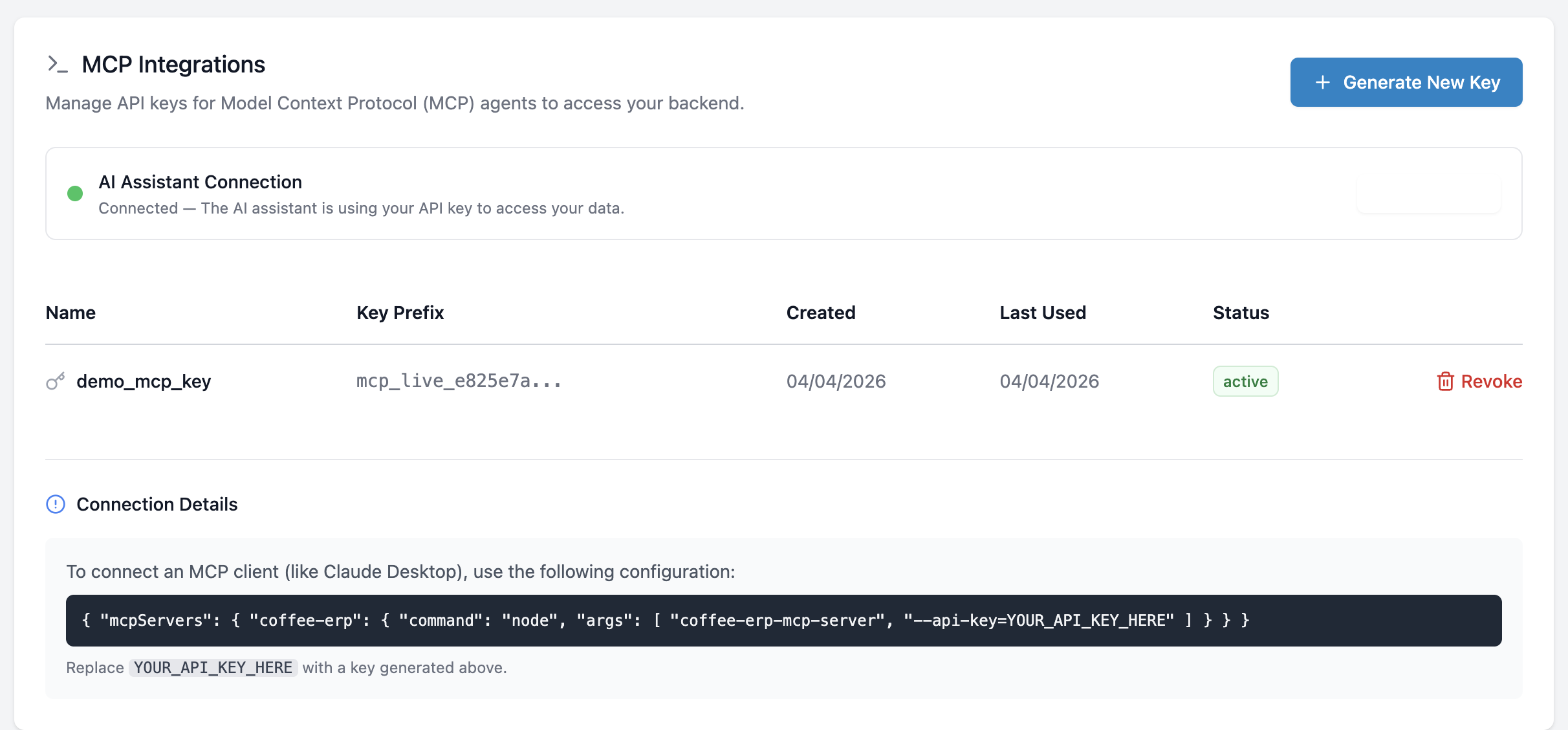
Step 2 — Generate an API Key
Click "Generate New Key", give it a name (e.g. Dashboard AI), and click Create.
Copy the key immediately. It is shown only once. If you lose it, revoke it and generate a new one.
Step 3 — Connect the Key
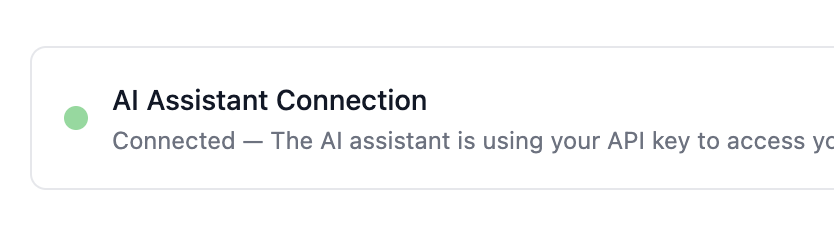
After the key appears, click "Connect to AI Assistant". The status indicator turns green and shows Connected.
Step 4 — Start Using the Assistant
Go back to the Dashboard. The AI Assistant is now active. The amber warning banner disappears and you can start typing.
The Dashboard Chat Interface
The AI Assistant occupies the top section of the Dashboard.
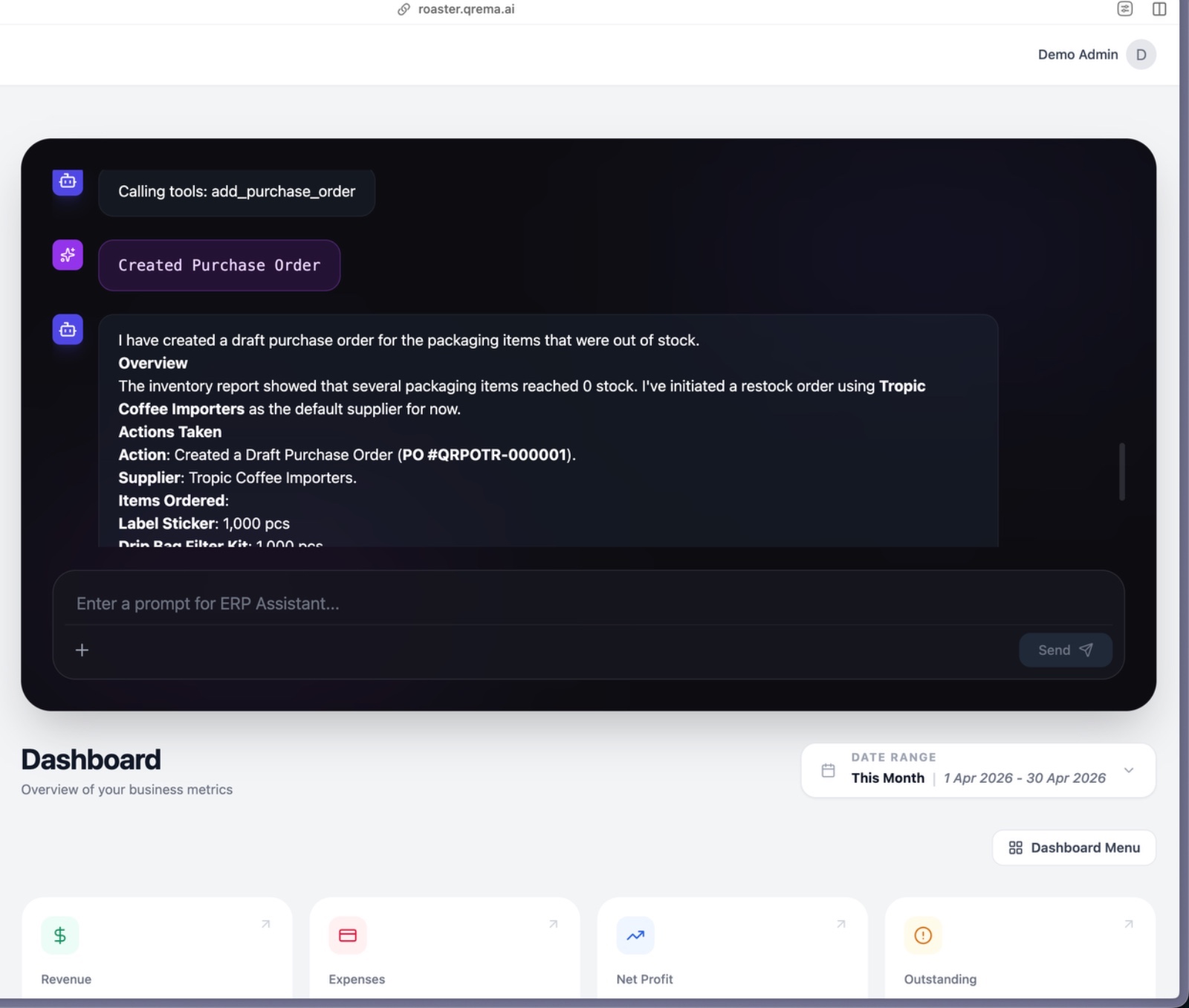
| Element | Description |
|---|---|
| Input box | Type your request in natural language |
| Send button | Submit your message (or press Enter) |
| Shift+Enter | Add a new line without sending |
| + button | Opens the Quick Actions menu after a conversation starts |
| Tool indicator | Purple messages show which data the AI fetched |
| Connection banner | Amber warning appears if no API key is connected |
Quick Actions
Use the suggestion chips below the input box to fill in pre-formatted prompts for common tasks:
| Chip | What It Does |
|---|---|
| Create purchase order | Starts a purchase order prompt |
| Create sales order | Starts a sales order prompt |
| Create inventory | Opens a structured inventory creation form |
| Create supplier | Opens a structured supplier creation form |
| Create customer | Opens a structured customer creation form |
| Create work order draft | Opens a work order draft prompt |
Once a conversation is active, click the + button for the same options in a popup menu.
What You Can Ask
The AI Assistant can handle any of the following. Examples are written in natural language — you don't have to be precise.
Inventory
| What to ask | Example |
|---|---|
| List inventory | "What inventory items do we have?" |
| Filter by type | "Show me all green bean items" |
| Item details | "Show details for Kintamani Arabica" |
| Create item | "Add a new green bean item called Papua Wamena, 50kg, reorder at 10kg" |
Purchasing
| What to ask | Example |
|---|---|
| List orders | "Show all purchase orders" |
| Filter by status | "List all pending purchase orders" |
| Order details | "Show details for PO-0012" |
| Create order | "Create a purchase order for 100kg of Gayo Arabica from CV Dampit Sejahtera" |
| Update order | "Mark purchase order [ID] as delivered" |
| Update payment | "Set payment status to paid for PO-0012" |
Sales
| What to ask | Example |
|---|---|
| List orders | "Show my sales orders" |
| Filter | "List all draft sales orders" |
| Order details | "Show details for SO-0034" |
| Create order | "Create a sales order for Cafe Rempah — 20kg House Blend at 150,000/kg" |
| Update status | "Mark sales order [ID] as sent" |
Work Orders
| What to ask | Example |
|---|---|
| List machine types | "What machine types do we have?" |
| List work orders | "Show all work orders" |
| Filter by status | "List in-progress work orders" |
| Work order details | "Show details for WO-0007" |
| Create work order | "Create a work order for tomorrow 09:00 on Probat P12, 12kg batch" |
| Update work order | "Update work order [ID] — set status to completed, output weight 10.5kg" |
Before creating a work order, ask "What machine types do we have?" to get valid machine type IDs. The AI will do this automatically if you ask it to create one.
Recipes
| What to ask | Example |
|---|---|
| List recipes | "Show all roast profiles" |
| Recipe details | "Show details for House Blend recipe" |
| Create recipe | "Create a recipe called Kintamani Light Roast, 12kg input, 10kg output, medium roast" |
| Update recipe | "Update House Blend — set tasting notes to chocolate and citrus" |
Suppliers
| What to ask | Example |
|---|---|
| List suppliers | "List all active suppliers" |
| Supplier details | "Show details for CV Dampit Sejahtera" |
| Create supplier | "Add a new supplier: Kopi Nusantara, contact Pak Budi, 0812-3456-7890" |
| Update supplier | "Update CV Dampit — add internal note: net 30 payment terms" |
Customers
| What to ask | Example |
|---|---|
| List customers | "Show all customers" |
| Customer details | "Show details for Cafe Rempah" |
| Create customer | "Add customer: Brew House Jakarta, email brew@example.com, billing address Jl. Kemang No. 5" |
| Update customer | "Update Brew House — add note: prefers 250g bags" |
Green Bean Profiles
| What to ask | Example |
|---|---|
| List profiles | "Show green bean profiles" |
| Profile details | "Show details for profile [ID]" |
| Create profile | "Create a green bean profile for Kintamani Arabica — Arabica, Bali, washed process, Grade 1" |
| Update profile | "Update profile [ID] — moisture content 11.5%, density 0.72" |
General Queries
The assistant can answer cross-module questions and give operational summaries:
- "How many suppliers do we have?"
- "What is the status of our latest work orders?"
- "Do we have any green bean items with less than 20kg stock?"
- "Summarize our recent purchase orders"
Tips for Best Results
- Be specific with names. The AI looks up records by name. If you say "Gayo", it will search for the best match — but "Gayo Arabica Grade 1" is more precise.
- Use the AI for multi-step tasks. For example: "Create a purchase order for 50kg of Gayo Arabica from CV Dampit — find the supplier and item IDs yourself." The AI will look them up automatically.
- Check tool calls. Purple messages in the conversation show exactly what the AI fetched. This helps you verify it used the right records.
- Correct mistakes inline. If the AI uses the wrong item, just say "Use [correct name] instead" and it will retry.
- The AI uses today's date for defaults. If you don't specify a date for a purchase or sales order, it defaults to today.
Managing API Keys
Go to Settings → MCP Integrations to manage your keys.
| Action | How |
|---|---|
| Generate a new key | Click "Generate New Key", name it, click Create |
| Connect a key | Click "Connect to AI Assistant" after generating, or use "Connect Key" to paste an existing one |
| Disconnect | Click "Disconnect" in the connection status panel |
| Revoke a key | Click "Revoke" next to the key — this permanently disables it |
Revoking a key immediately disconnects any tool or integration using it, including the Dashboard AI Assistant. Generate and connect a new key before revoking if you need uninterrupted access.
Connecting External AI Tools (Claude Desktop, etc.)
You can also use your Qrema API key with external MCP-compatible AI tools such as Claude Desktop.
In your Claude Desktop config file (claude_desktop_config.json), add:
{
  "mcpServers": {
    "coffee-erp": {
      "command": "node",
      "args": [
        "coffee-erp-mcp-server",
        "--api-key=YOUR_API_KEY_HERE"
      ]
    }
  }
}
Replace YOUR_API_KEY_HERE with a key generated from Settings → MCP Integrations.
Troubleshooting
| Problem | Fix |
|---|---|
| Amber warning banner on Dashboard | Go to Settings → MCP Integrations and connect an API key |
| "AI Assistant is not connected" | Key is not set in this browser — reconnect via Settings |
| "Invalid or revoked API key" | The key was revoked — generate and connect a new one |
| AI returns wrong data | The AI searched by name and picked the closest match — correct it by specifying the exact name |
| AI says it can't create a work order | No machine types exist — add them via Production → Machine Types first |